Image level passwords let each family see only their own child's photos, which is exactly what schools and parents want under the POPI Act. The catch has always been setting them up. You needed a spreadsheet listing every photo and whose it was, and for a school day of several classes that could take longer than the shoot itself.
So we have built a quicker way. Group by subject sorts a class into one group per child for you, gives each child their own password, and leaves you to check the result and fix the odd mistake.
How it works
When you photograph a class, each child steps up, you take a handful of shots, and the next child steps up. Those changeovers leave a pause in the time your camera records on every photo. Group by subject reads those times and splits the class at the pauses, so all you have to tell it is how many children you photographed.
It looks at when each photo was taken, never at who is in it. There is no facial recognition and no scanning of children's faces — something we chose deliberately, and something you can tell your schools.
Shooting with two cameras? It sorts each camera's photos separately, so two clocks don't get mixed up.
Three quick steps
Open a shoot, choose Image level passwords, and press Group by subject next to a class.
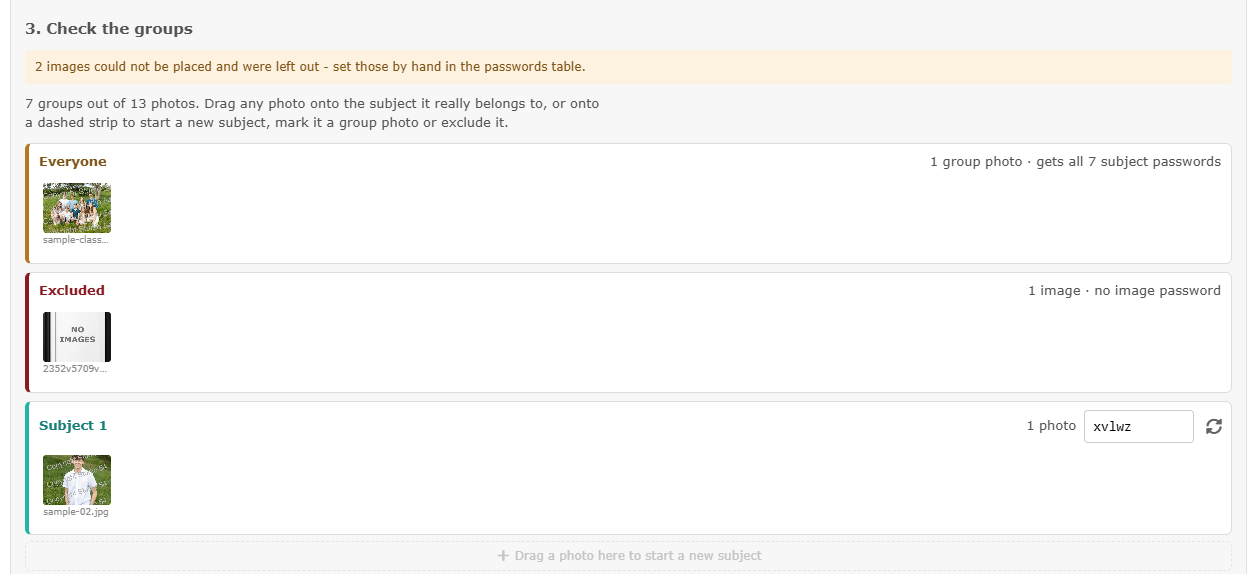
1. Tag the class photos. Mark any group or class photos so everyone in the class can see them, and exclude anything that belongs to nobody, like a test shot or a lens cap.
2. Say how many children. Type in how many were photographed and press Preview groups.
3. Check the groups. Each child appears as a row of thumbnails with their own password. If a photo has landed in the wrong group, drag it to the right one, or drag it onto the space below a group to start a new one. When you are happy, press Apply and then Save changes.
Your work is kept as you go. If you get interrupted halfway through a class, close the page or come back the next day, your groups will be waiting exactly as you left them.
Print a slip for every child
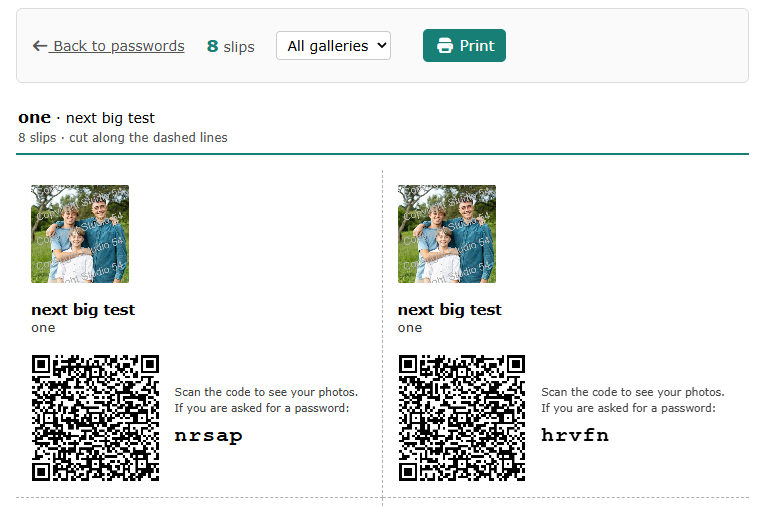
Once the passwords are saved, press Print tearsheets. You get one slip per child, with thumbnails of their photos, their password and a QR code to the gallery. Cut them up and send them home in school bags — no parent email addresses needed, and no class list from the school.
Good to know
Group by subject needs the capture time your camera saves in every photo. Galleries uploaded before August 2026 may not have it, and the button will tell you if so. It works best on a laptop or desktop, where dragging photos between groups is easiest.
As always, if you try it out and something does not fit the way you work, we would love to hear about it — get in touch and let us know.